Management Console – Admin Playbook
The Management area is an admin’s control centre. Think of it as your “settings plus people plus rules” dashboard: you decide who can do what, inside which workflow stage, long before the first contract is drafted.
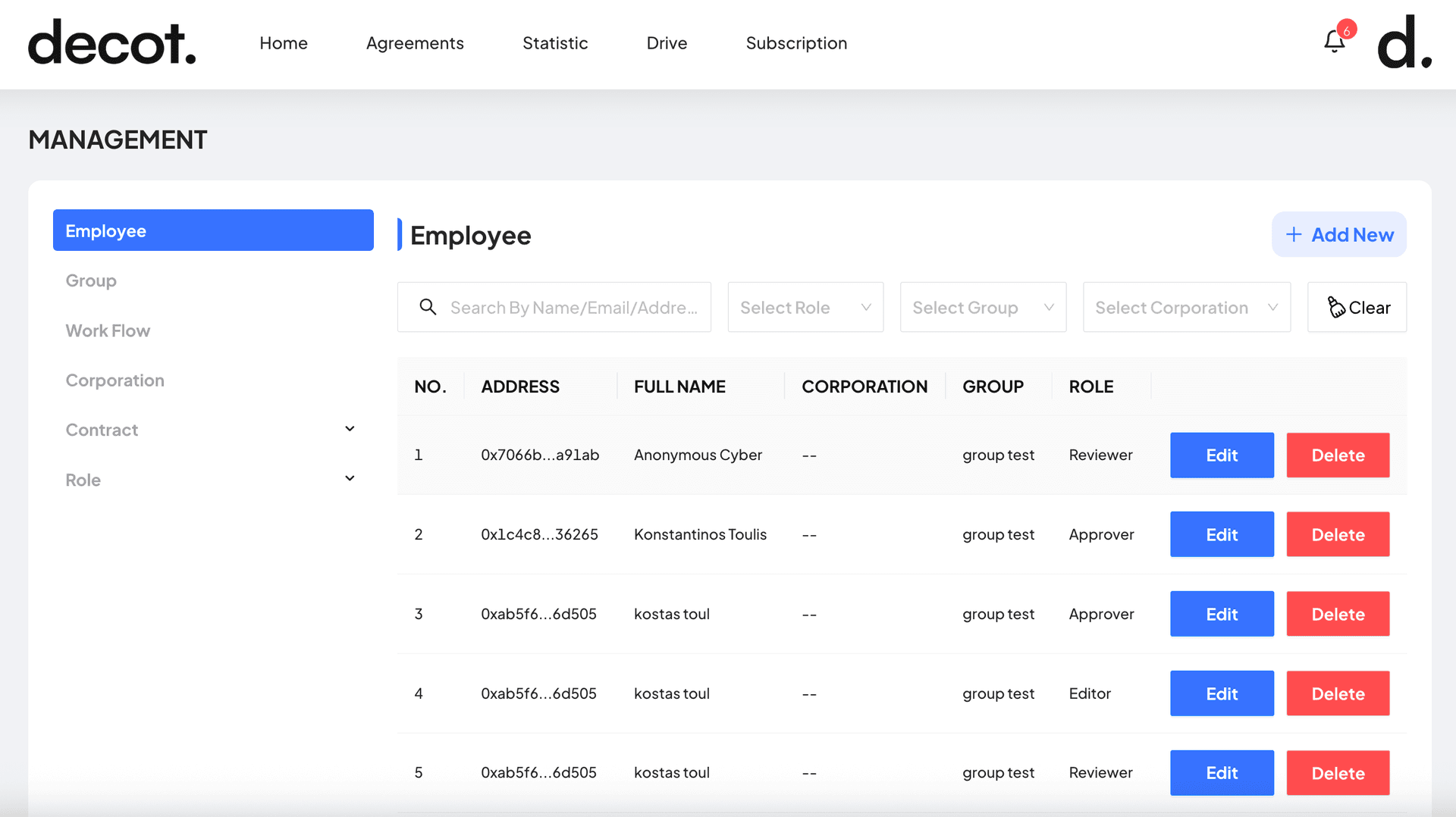
1 · Console layout – what’s on the screen?
The left-hand sidebar is your toolbox; the big pane on the right is the workspace. Each sidebar item opens a sub-module:
- Employee – onboard or off-board individual users.
- Group – logical teams (e.g. “Legal”, “Sales EU”).
- Work Flow – define multi-step approval rules.
- Corporation – separate legal entities inside your tenant.
- Contract ▾ – quick jump to Draft / Finalized registers.
- Role ▾ – create granular permission sets.
- Licensed Documents – upload templates governed by licence limits.
2 · On-boarding employees
- Click Add New (top-right). A slide-out form appears: Full Name, Email, Wallet Address (optional), Corporation, Group, Role.
- Hit Create. The user receives an invite e-mail plus a link to complete their 3-step Decot custom ZK login. Until they accept, they show as “Pending”.
- Use the search bar & filters (Role / Group / Corporation) to locate users fast—even if you have thousands.
3 · Groups & corporations
Groups are flexible buckets for permissions and reporting (think “HR team France”). Corporations record legal entities—handy when one holding company manages contracts for several subsidiaries.
- Set default signature limits per corporation (e.g. “over €1 M → CFO”).
- Filter dashboards by group to see only your team’s contracts.
- Combine groups with roles for powerful, least-privilege access.
4 · Roles & permissions
A Role is a bundle of privileges such as “Can Upload,” “Can Comment,” or “Must Approve invoices > $50k.” Start with the presets then tweak:
- Viewer – read-only.
- Editor – draft & comment, but no send-for-signature.
- Approver – must OK before the next step.
- Signer – legally binds the organisation.
- Admin – everything, including other admin accounts.
5 · Building workflow rules
Workflows tell Decot who must push the contract forward at each milestone. A simple NDA might be “Author → Signer → Counter-Signer”. A complex purchase order could branch by amount, region or product line.

- Hit Create Workflow → name it (e.g. “Supplier over £50k”).
- Add Steps: choose Approval, Signature, Inform-Only.
- Drag roles or individuals into each step.
- Optional: add a Condition (e.g. Amount > 50 000).
- Save. The rule appears as an option whenever someone drafts a contract.
6 · Contract status tree
In the sidebar you’ll see two quick-links under Contract:Draft and Finalized. These act like smart folders:
- Draft – anything editable, awaiting workflow.
- Pending Signature – locked, signatures outstanding.
- Executed – fully signed, immutable.
- Archived – expired or superseded.
7 · Licensed documents
Some template libraries are licensed by seat or by download. Upload them here and Decot will track usage automatically so you stay compliant.
- Supports PDF, DOCX, ODT and more.
- Set per-file limits (e.g. “Max 100 executes per year”).
- Admins see usage dashboards; authors see a simple “licensed” badge.
FAQ
- Can I bulk-import employees?
Yes. In the Employee tab click ⋯ More › Import CSV. Map columns → preview → confirm. Decot e-mails each person.
- What happens if I delete a role that’s in a workflow?
The console blocks deletion and shows where the role is referenced. Re-assign or remove it from every workflow first.
- Is this recorded on-chain?
Management data (users, roles, groups) lives in the app database for speed. Actions that affect a contract (new draft, signature, amendment) still anchor a hash to Sui for auditability.
Need more help? Email [email protected].