Decot Web App – User Guide
This comprehensive guide covers everything you need to effectively manage your contracts on the Decot platform—from initial dashboard navigation and document preparation to collaborative negotiation, secure execution, and diligent monitoring. All functionalities are designed for direct use by legal and business professionals, no coding knowledge required.
1 · Navigating the Dashboard
After signing in with Decot custom ZK login (or your verified email login flow), you will land on your main Decot Dashboard. This is your central hub for managing all contract-related activities.
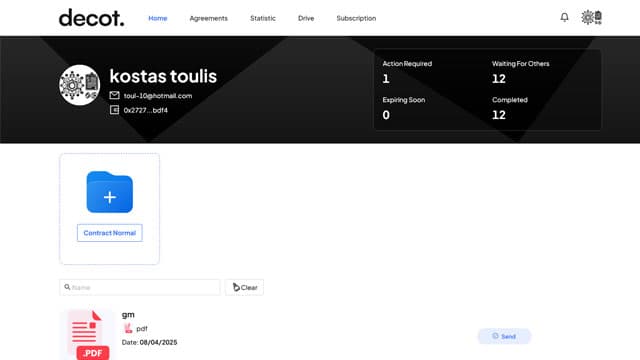
Key areas of the Dashboard include:
- Contracts List: This is the core of your dashboard, displaying all contracts you own or have access to. You can:
- Filter and Sort: Find contracts quickly by status (e.g., Draft, Pending Signature, Executed, Archived), owner, creation/expiry date, or custom tags you've applied.
- Search: Use keywords to search across contract titles, parties, or other metadata.
- View Summaries: Get at-a-glance information for each contract, such as current status, next action required, and key dates.
- Notifications Panel: Stay informed about critical updates and required actions. This panel will alert you to:
- Contracts pending your review or signature.
- Contracts signed or updated by other parties.
- Mentions or comments requiring your attention.
- Upcoming contract expiries or renewal deadlines.
- ➕ New Contract Button: Your primary starting point for initiating new agreements. Clicking this will take you to the contract creation flow, detailed in the next section.
- Quick Access / Recent Activity (if applicable): Some dashboards may also feature sections for recently accessed contracts or a summary of pending tasks for quick access.
- Decot Drive Access: Look for a link or tab to access your personal or team's "Decot Drive," your centralized document repository within the platform.
2 · Decot Drive & Contract Creation
Decot streamlines contract initiation by integrating a secure document repository called the Decot Drive. This allows you to manage your contract templates and working documents efficiently before and during the creation process.
2.1 · Utilizing Your Decot Drive

Your Decot Drive is your private, secure space within the platform to:
- Upload Documents: Store various file types (PDFs, DOCX, XLSX, etc.) that you frequently use for contracts or as templates.
- Organize with Folders: Create a folder structure to keep your documents, templates, and related materials neatly organized (e.g., by client, contract type, or department).
- Manage Templates: Store your standardized contract templates in the Drive for quick access when creating new agreements. This ensures consistency and saves time.
- Version Control (Implicit): While the primary version control is tied to a specific contract instance (see Collaborative Editing), the Drive helps manage master versions of your templates.
Documents in your Drive are also protected with Decot's security measures, including encryption where applicable.
2.2 · Creating a New Contract
To start a new contract:
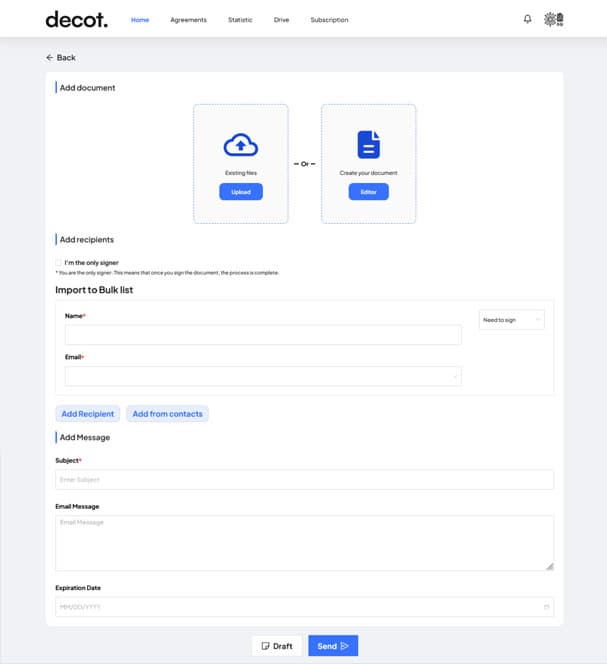
- Click the ➕ New Contract button on your Dashboard.
- You'll typically be presented with options for sourcing your document:
- Upload a New File: Drag-and-drop a document (PDF, DOCX, etc.) directly from your computer.
- Choose from Decot Drive: Browse and select an existing document or template you've previously uploaded to your Decot Drive. This is ideal for using standardized templates.
- Select a Platform Template (if available): Decot may offer a library of pre-built common contract templates you can use as a starting point.
- Once your base document is selected or uploaded, you'll proceed to fill in essential contract metadata. This is crucial for organization, searchability, and automated reminders:
- Title: A clear, descriptive name for the contract.
- Parties: Names of all individuals or organizations involved.
- Key Dates: Effective Date, Expiration Date, and any other relevant dates.
- Tags/Categories: Custom labels for easier filtering and reporting (e.g., "NDA," "Client X," "High Priority").
- Internal References: Any internal tracking numbers or codes.
- After entering the metadata, click Save Draft. Your contract is now created in Decot with a "Draft" status.
1️⃣ Your browser locks the file with SEAL cryptography. 2️⃣ The encrypted blob is parked in Walrus storage—think of it as a distributed safe. 3️⃣ A tiny fingerprint (hash) of that file is stamped forever on the Sui blockchain. Nobody sees your words, but everyone can verify the file hasn’t been changed—three walls of defence working together.
3 · Collaborative Editing & Negotiation
With Decot, edits feel like commenting on a Google Doc, but every change is versioned and provable. Here’s the kid-simple flow:
- 1. Start the draft: Click ➕ New Contract , then choose Create your document that open the built-in Editor to write your contract. When you finish this step, hit Create Contract . The contract now sits inDraft mode—safe to tweak, not yet sent for signing.
- 2. Invite reviewers: Add teammates or counterparties as Commenters . They’ll get an email and a link that drops them right into the draft.
- 3. Point-and-comment: Reviewers highlight words or clauses and leave notes such as “Let’s change the price to €10 000.” All notes live in a sidebar and carry automatic time-stamps.
- 4. Suggest a rewrite: If a reviewer wants deeper changes, they press Suggest Edit . The system saves a new “Version 2” alongside the original so nothing is lost.
- 5. Accept or reject: The contract owner opens each suggestion, clicks ✅ Accept to swap it in, or ❌ Reject to keep the old wording. Every choice—and the reason typed in—is stored forever in the history.
- 6. Lock for signature: Once everyone is happy, the owner taps Send for Signature . The text is now frozen; any later change must go through a formal Amendment.
4 · Signing & Finishing Your Contract
When everyone agrees on the wording, it’s time to freeze the text and make the deal official. Decot turns the last-draft PDF into a one-click signing ceremony powered by the Sui blockchain — but Decot pays the gas, so you never touch crypto.
- Send for Signature: The owner clicks Send for Signature. At that moment the document is locked, SEAL-encrypted again, and its new hash is stamped on Sui.
- Email & Signing Prompt: Each signer receives an email plus an in-app alert. Opening the link shows the final PDF and a Sign button. Decot opens a secure approval prompt to confirm the signature.
- Blockchain Proof: The wallet approval creates a cryptographic signature that Sui records forever. Because Decot subsidises fees, signers just click ✔ — no tokens, no headaches.
- Automatic Wrap-up: When the last required signature lands, Decot:
- flips the status to Executed,
- compiles a final signed PDF plus a JSON hash certificate,
- emails everyone a secure link (served straight from their Walrus vault).
- Reminders & Renewals: Any expiry or renewal rules you set earlier kick in automatically — Decot pings the right people before the deadline.
5 · See Every Move — The Audit Trail
Need to prove who did what, and when? Click Audit Trail on any contract to open a tamper-proof timeline. Each row shows the human-friendly event and its Sui transaction hash for geeks and auditors.
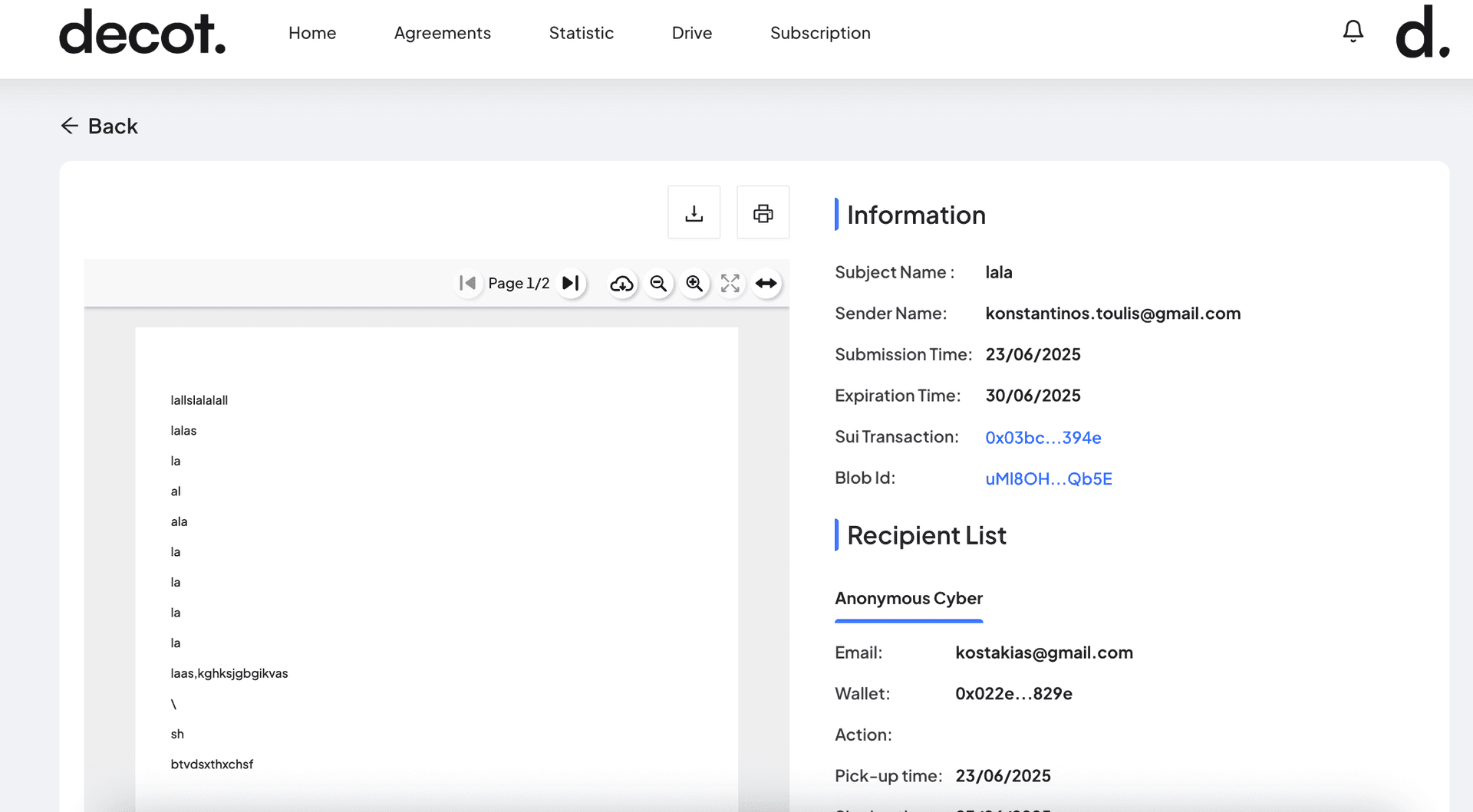
- Full History: Drafts, version swaps, comments, approvals, signatures, renewals — every click lives here.
- Three-Layer Proof: Each entry links to Sui (integrity), its file in Walrus (storage), and the SEAL-encryption tag (confidentiality).
- Explorer Link: Tap the hash to open the public Sui explorer in a new tab. Thanks to zkLogin, your real-world identity stays private.
- Download Certificate: Need offline evidence? Click Export to grab a JSON file containing the document hash, signer addresses, and block timestamps — ready for auditors.
- Immutability Matters: Entries on Sui can’t be edited or deleted. If someone tries, the mismatch hash instantly exposes the tampering.
6 · Mint Your Contract as an NFT
Once the contract is signed and locked, you can mint it as a personal NFT — a first-of-its-kind feature that turns your agreement into a collectible, tamper-proof token sitting in your wallet (and only yours). Minting is optional and free; Decot still pays the gas.
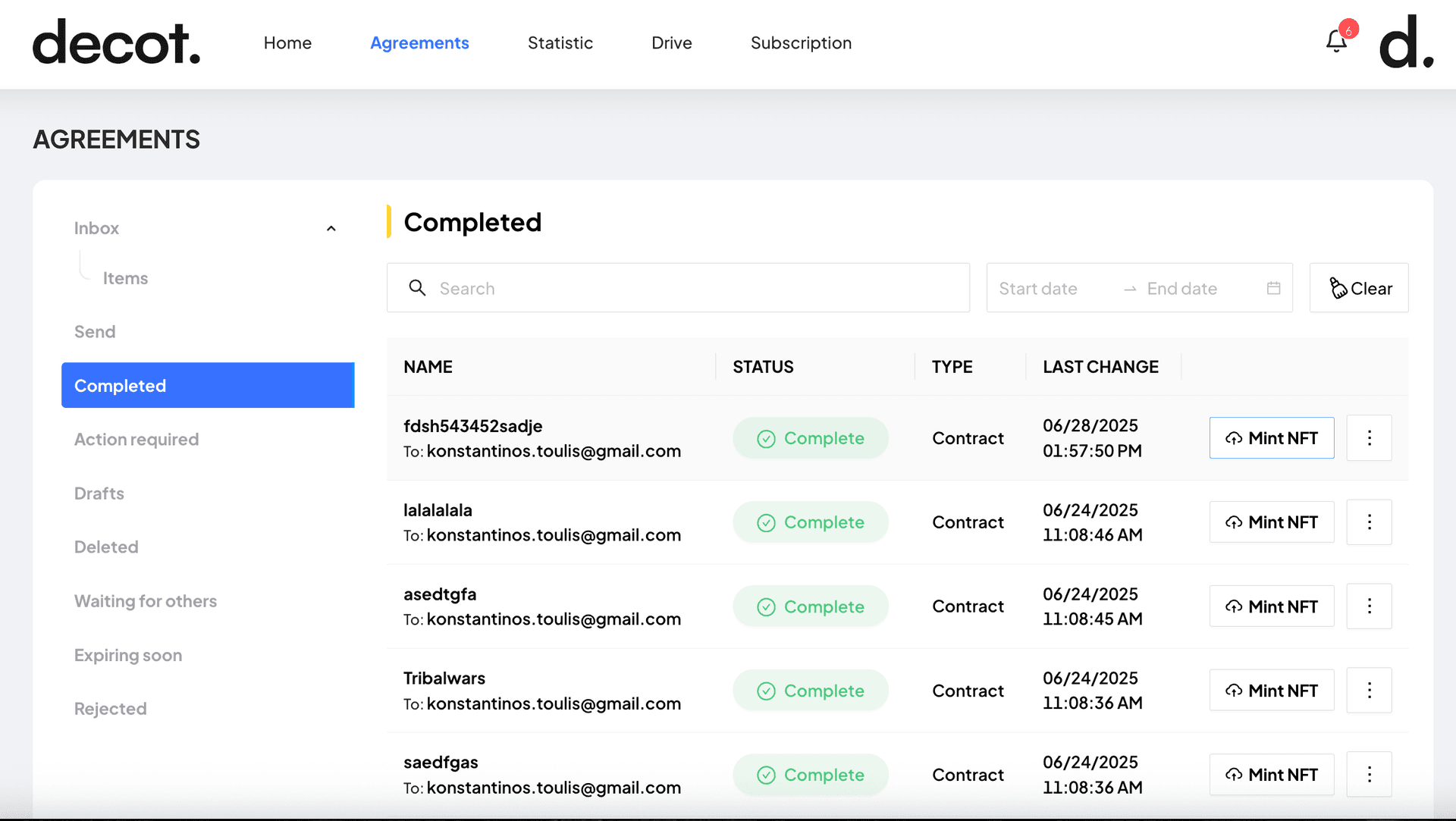
- Open Agreements ▸ Completed Tab: From the top nav, click Agreements. Switch to Completed to see every executed contract you own.
- Click “Mint NFT”: Each row shows a Mint NFT button. One tap opens your wallet; approve the zero-cost transaction.
- What Gets Stored? The NFT metadata includes:
- Title, parties, execution date (plaintext).
- A hash pointing to the SEAL-encrypted contract PDF in Walrus (still private).
- The block number of the final signature for provenance.
- Private by Design: The NFT lives in your Sui wallet. Without your decryption key, nobody can open the document — even if they browse the token on a public explorer.
- Viewing the NFT: In your wallet or on a Sui explorer, you’ll see the token image (Decot’s logo by default) and the public metadata. Clicking “Decrypt Document” in Decot pings Walrus, streams the encrypted PDF, and unlocks it locally in your browser.
- Transfer or Keep: Need to hand off the contract (e.g., corporate acquisition)? Simply transfer the NFT to the new owner’s Sui address — the encryption key follows, so they gain exclusive access.
Quick FAQ
- What about gas fees on the Sui network?
Decot is designed to simplify the Web3 experience. For most standard user actions like signing, uploading, and basic contract interactions through the web app, Decot subsidizes (covers) the Sui network gas fees. For very large file storage or exceptionally high-volume enterprise usage, there might be specific considerations or a credit system, which would be outlined in your service agreement.
- What if I lose access to my login method?
Use Decot account recovery with your verified email and configured recovery method. If additional checks are required, contact support to complete identity verification.
- Can I edit a contract after it has been fully executed?
No, once a contract is executed and its final state is recorded on-chain, that specific version becomes immutable to preserve its integrity. If changes are needed after execution, the standard legal practice is to create an Addendum or Amendment. You can do this in Decot by creating a new contract document that references the original executed contract, and then have all parties sign the addendum.
- What file types can I upload to Decot Drive and use for contracts?
Decot typically supports common document formats like PDF (recommended for final versions), DOCX (Microsoft Word), and potentially others like XLSX (Excel) or PPTX (PowerPoint) for attachments or supporting materials stored in the Drive. The core signing process often converts documents to PDF for consistency.
- How secure are my documents and contract data on Decot?
Decot prioritizes security. Documents are encrypted client-side (in your browser) before upload. Only their cryptographic hashes are anchored on the Sui blockchain for integrity verification. Access controls, roles, and permissions further protect your data within the application. zkLogin enhances privacy for on-chain interactions.
What’s next?
You've now covered the essentials of using the Decot web app! To further enhance your contract management capabilities, consider exploring these areas:
- Configure teams, user roles, and access permissions in Contract Management.
- Automate internal review and approval sequences using the Workflow Rules section.
- Dive deeper into our security protocols and data privacy measures in the Trust & Compliance documentation.
Happy contracting! 🎉